Navigate in the map
Map Navigation Toolbar
The Map Navigation Toolbar is at the top left side of the map.
It contains tools to move around the map.
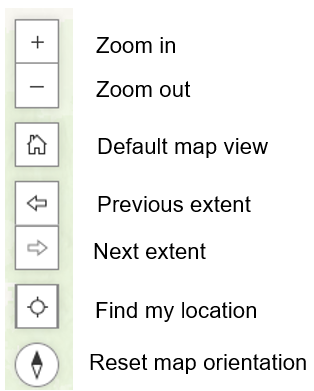
Zoom in – zoom in one preset zoom level
Zoom out – zoom out one preset zoom level
Default map view – zooms to preset default map view
Previous extent – moves map back to previous map extent
Next extent – moves map to the next extent after having moved to previous extent
Find my location – zooms map to your current location (has known limitations depending on device and browser used)
Reset map orientation – returns the map to upright orientation after being rotated
Additional map navigation information
Zoom in with box - Hold the Shift key down, draw a box with left mouse button, then release the mouse button to zoom to the location.
Pan with mouse – Click and hold the left mouse button down and drag the map in the desired direction, then release the mouse button.
Pan with arrow keys - Press the keyboard arrow keys to move the map in the desired direction.
Rotate map – Hold the right mouse button down and move the mouse to rotate the map.